Thứ Sáu, 17 tháng 4, 2015

Cách Setup Chore trong Cognos TM1 Performance Modeler

Khi bạn tạo ra các Process, đặc biệt là các Process Update dữ liệu từ cơ sở dữ liệu lên TM1. Các Process này cần phải chạy thường thường xuyên đảm bảo dữ liệu đưa lên luôn đầy đủ và chính xác.
Nhưng không phải lúc nào bạn cũng có thời gian vào hệ thống để chạy lại Process liên tục, vì vậy Cognos TM1 hỗ trợ chức năng thiết lập lịch chạy tự động cho Process được gọi là Chore.

Sau đây là hướng dẫn đơn giản để thiết lập lịch trình chạy tự động một Process.
Bước 1:
 Nhấp chuột phải vào thư mục Chore =>New=>Chore
Bước 2: Đặt tên
Bước 3: Chọn Process muốn chạy tự động
ChoreCognosTM1_1.jpg 

Bước 4: Chọn thời gian chạy, chọn tab Schedule
ChoreCognosTM1_2.jpg 
Bước 5: Active Chore,
Bước 6: Lưu Chore
Chúc bạn thành công !

Vô hiệu hóa, Xóa Rules phát sinh của Link tránh lỗi trong Cognos TM1

Trong Cognos TM1 có hỗ trợ chức năng Link. Chức năng này có thể giúp bạn chuyển dữ liệu từ cube này sang cube khác. Tuy nhiên trong nhiều trường hợp khác nhau các Link này không còn phù hợp với yêu cầu xử lý dữ liệu và bạn muốn xóa nó đi.

Để tránh những rắc rối phát sinh cũng như những lỗi không mong muốn xảy ra. Sau đây là hướng dẫn xóa Link hay vô hiệu hóa Link trongCognos TM1 rules.
Lưu ý luôn luôn phải vô hiệu hóa Link trước khi xóa.

Bước 1: Vào Rules, chọn đoạn rule của link muốn vô hiệu. Nhấp phải chuột chọn Disable Ctr+D
h1.jpg 

Bước 2: Nhấp phải chuột trên link => Delete
Chúc bạn thành công !

Copy cube từ Server 1 sang Server 2 (Replications)

Khi xây dựng các mô hình trong TM1, đôi lúc bạn muốn tạo lại những cube có cấu trúc giống nhau. Điều này khiến bạn tiêu tốn khá nhiều thời gian cho việc làm lại các Dimension, viết rule, nhập liệu.
Sử dụng chức năng Replications trong Architecht TM1, giúp bạn tạo được cube với cấu trúc tương tự đồng thời giúp bạn tiết kiệm được nhiều thời gian.
Bước 1:
Đăng nhập Server bạn muốn tạo cube mới chọn : Relications => Insert New Relication

TM1 relication1.png 
Bước 2: Nhập thông tin server chứa Cube muốn copy
TM1 relication1.png 
Lúc này trong Relications sẽ xuất hiện toàn bộ các Cube trong server Retail tức là server chứa Cube muốn copy
Bước 3: Chọn vào cube bạn muốn copy, nhấp đôi chuột
Bước 4: Đặt tên lại cho Cube mới => OK
TM1 relication1.gif 

Chúc bạn thành công !

Reporting in SAS Visual Analytics

SAS Visual Analytics cung cấp tool để tạo ra những báo cáo hoàn chỉnh và các báo cáo phục vụ trên moblie đó là Report Designer. SAS Visual analytics cung cấp các control, containers tạo nên sự tương tác, hiệu ứng giữa các đối tượng trong một báo cáo, làm cho báo cáo trở nên sinh động hơn, đa dạng hơn. Và đó là thế mạnh của reporting SAS Visual analytics.

Report.jpg

Và trong topic này mình sẽ giới thiệu phần làm việc với các tool của Report designer , cách làm việc và làm thế nào để tạo nên một báo cáo, làm thế nào để sử dụng kết hợp để tạo nên sự tương tác giữa các đối tượng trong một báo cáo.

Trước khi bắt đầu, chúng ta sơ lược màn hình chính mà chúng ta sẽ làm việc tạo report.
Click vào home -> chọn report designer.Bạn sẽ thấy giao diện chính để làm việc
SAS_Report01.jpg

Như các bạn đã thấy trong phần thanh công cụ bao gồm nhiều đối tượng:

  • Sử dụng tables để hiển thị dữ liệu: có 2 dạng hiển thị dữ liệu là List và Crosstab. Đối với 2 dạng này bạn chỉ cần kéo thả các field vào table hoặc listview. Hệ thống hỗ trợ cho bạn tất cả các thuộc tính cần thiết như Sum total, Add Sparkline, Add Rank, Add Alert v.v.v
ListView_SAS.jpg 

SAS_CrossTab.jpg 

  • Ngoài ra còn trong report SAS Visual Analytics còn hỗ trợ bạn một thuộc tính đó là Combine Excluded Rows or Cells và thuộc tính này hữu ích như thế nào nhé. Trong trường hợp mình có ví dụ lọc ra các order total của nhóm sản phẩm trong khoản giá trị 500.000 -> 6000.000. Và khi đó bạn sẽ thấy tui có màn hình như sau:
SAS_AllOther.jpg 
  • Khi đó bạn muốn biết tổng giá trị của những nhóm sản phẩm còn lại nằm ngoài khoản 500.000 -> 6000.000 lúc đó bạn phải làm thế nào, đối với report SAS visual analytics bạn thực hiện một cách dễ dàng -> tuỳ chỉnh thuộc tích check vào Combine Excluded Rows.Khi đó bạn thấy xuất hiện row All Other
SAS_AllOther01.jpg 

  • Sử dụng Graphs để hiển thị dữ liệu: là đối tượng có các dạng chart để phục vụ cho việc xây dựng report, và bao gồm tất cả loại chart. Bạn có thể xem các loại chart của report SAS Visual Analytics tại đây.
  • Bạn có thể tuỳ chỉnh các thuộc tính của chart để thay đổi màu sắc, kích thước, sự tương tác. Và việc thể hiện dữ liệu trên chart cực kỳ đơn giản, kéo thả các field vào chart.
SAS_Chart.jpg
  • Sử dụng Controls để hiển thị dữ liệu: là đối tượng bao gồm các Drop-down list, List, Button bar, Text input, Slider. Các đối tượng control này dùng làm bộ lọc dữ liệu, mỗi control cho bạn lọc dữ liệu bằng một danh mục chứa trong control. Ví dụ khi bạn kéo một dimension nhóm sản phẩm vào control Drop - down list => sẽ tạo cho bạn một danh sách sổ xuống các nhóm sản phẩm cho người dùng lựa chọn và tuỳ chỉnh chọn nhiều hoặc chỉ duy nhất. Bạn có thể xem cách xây dựng và ứng dụng control tại đây.
SAS_Control.jpg
  • Sử dụng Containers kết hợp các đối tượng: containers để nhóm các đối tượng chứa trong một containers. Bạn tận dụng Containers để tạo các hiệu ứng tương tác, lướt , chuyển đổi các chart, bao gồm 3 loại:
    • Vertical and horizontal containers.
    • Stack containers: bao gồm nhiều đối tượng báo cáo được hiển thị như slide. Tại mỗi thời điểm sẽ có một đối tượng báo cáo đươc hiển thị. Có một thanh điều khiển để bạn di chuyển qua lại để thay đổi các đối tượng báo cáo được trình diễn như Slide.
    • Prompt containers: đối tượng này chứa các prompt, nhóm các đối tượng control lọc dữ liệu.
  • Sử dụng các loại đối tượng khác
    • Text: thể hiện văn bản tĩnh, bạn có thể sử dụng để làm các báo cáo văn bản, dùng để chú thích hoặc bạn tạo một liên kết đến báo cáo hoặc đường dẫn nào đó v.v.v
    • Image: thể hiện hình ảnh trên report, ví dụ như logo công ty bạn. Bạn có thể upload hình từ mày tính của bạn hoặc từ kho ảnh trên server.
    • Stored Process: một stored process được lưu trữ trên server. Code SAS bao gồm queries, prompted filters, hiệu ứng hình ảnh, statistical analyses. Bạn có thể add một hoặc nhiều store process vào một report.
      • Lưu ý có những hạn chế của stored process trong việc thiết kế báo cáo.
      • Stored process không thể là nguồn hoặc là đích của sự tương tác trong report
      • Stored Process không thể thêm vào container.
    • Geo Bubble Map.
    • Geo Coordinate Map.
    • Geo Region Map.
    • Gauge.
    • Word Cloud.

Hướng dẫn cài đặt Cognos Express SDK

Bài này mình sẽ hướng dẫn cài đặt Cognos Express Sdk, đây là phần extend dùng để phục vụ việc phát triển các ứng dụng tích hợp với Cognos Express. 

Để tiến hành cài đặt, bạn phải tải gói Cognos Express SDK từ site IBM, đây là phiên bản Cognos Express SDK 10.2.1.

Bước 1: Sau khi download, bạn giải nén ra 1 thư mục trên ổ cứng, ví dụ:
express_sdk_setup1.png ​

Bước 2: Vào thư mục Temp (vào Start\Run gõ '%Temp%' Enter), tạo 1 file altname.ini với nội dung :

[Rendition]
Name=cxsrvr10dot2dot1
Description=IBM Cognos Express
Folder=Cognos Express
Company=IBM
Bước 3: Vào thư mục bạn đã giải nén gói download ở trên chạy file : winx64h\issetup.exe với quyền Administrator :
express_sdk_setup2.png 

Bước 4: Bạn chọn ngôn ngữ để cài đặt :
express_sdk_setup3.png 

Bước 5: Bạn chọn Agree, và click Next :
express_sdk_setup4.png 

Bước 6: Bạn chọn thư mục đã cài đặt Cognos Express và click Next :
express_sdk_setup5.png 

Bước 7: Nếu Cognos Express services đang chạy, chương trình sẽ báo stop services trước khi cài đặt:
express_sdk_setup6.png 

Bước 8: Bạn xem lại summary setup và click Next để tiến hành cài đặt :
express_sdk_setup7.png 

Sau khi hoàn thành, bạn click Finish để hoàn tất quá trình cài đặt :
express_sdk_setup8.png 

Đến đây ta đã hoàn tất quá trình cài đặt, bài tiếp theo mình sẽ trình bày cách cài đặt Cognos Mashup Services cho Cognos Express. Đây là 1 extend dùng để tương tác với Cognos Express thông qua http request, rất có ích và tiện lợi cho các add-in dạng HTML để nhúng vào Cognos.

Cognos PDF output in Single page

Khi chúng ta có nhiều cột trong Crosstab hoặc list chạy export báo cáo ra định dạng PDF. Thì chúng ta gặp tình trạng cột nằm ở 1 trang và vài cột khác nằm ở các trang khác.
Để khắc phục tình trạng này bạn thực hiện tùy chỉnh như sau trong Cognos report studio


test.PNG

Introduction Cognos Dynamic Cube

Như các bạn đã biết trước khi thực hiện thiết kế báo cáo, Cognos BI có bước Framework Manager như bước trung gian để thực hiện tạo mô hình, cũng bao gồm fact và các dimension, tạo ra các mô hình hoàn hảo với các chiều phân tích nhưng lại có một vấn đề nhỏ là không cải thiện được tốc độ khi sử dụng các packge này để sử dụng Analysis Studio, một tool của Cognos BI dùng để phân tích dữ liệu. Và chính vì vậy Dynamic Cube được xây dựng để bù đắp cho vấn đề này.

0229209.png ​

Dynamic Cube sử dụng công nghệ In-memory OLAP tải dữ liệu trực tiếp từ các nguồn dữ liệu quan hệ. Dynamic Cube hỗ trợ tối ưu hóa cho mô hình Start-Schema và Snow-Flake Schema. Mỗi một cube chỉ bao gồm một bảng FACT và AGGREGATED FACT với các measure tương tự.

Dynamic Cube bổ sung các công cụ truy vấn hiện tại và khả năng mở rộng để cho phép tốc độ phân tích trên terabytes dữ liệu của doanh nghiệp trên nền tảng cơ sở dữ liệu. Phát triển với công nghệ kỹ thuật đã xuất hiện gần đây gọi là Dynamic Query Mode (DQM)

Dynamic cube là tool bổ sung cho việc phân tích hiệu suất cao với dữ liệu lớn, sau đây là những điều kiện để tối ưu hóa việc sử dụngDynamic Cubes:

  • Data Warehouse với Start hoặc Snowflake Schema
Một thiết kế phù hợp với kho dữ liệu, với hai mô hình này được kiểm chứng thực tế được cho là tốt nhất , là một phần để thực hiện tối ưu hóa performance. Đây là một yêu cầu tất yếu khi sử dụng Cognos Dynamic Cube.​

  • Một Server có đủ bộ nhớ
Với công nghệ In- Memory Cognos Dynamic dựa trên bộ nhớ tối đa để tối ưu hóa tiềm năng của Cube. Vì vậy một server có đủ bộ nhớ để hỗ trợ các ứng dụng có thể phát huy hết tiềm năng của Dynamic Cube.​


  • Kiến trúc của Dynamic CubeCognosDynamic CUbe.png 

  • Quy trình làm việc của Dynamic Cube

Dynamic CUbe.png 


Các bạn có thể theo dõi các bái viết chi tiết việc thực hiện tạo cube thế nào nhé.

Thứ Sáu, 10 tháng 4, 2015

Cannot open/save excel(.xls) reports from Cognos Connection.

Ở giao diện Cognos Connection bạn có thể mở, chạy report và save report dưới dạng format HTML, PDF, Excel. Và đôi khi có một vài máy client không thể download file dìa như bạn mong muốn.

Và dưới đây là một vài cách để giải quyết vấn đề này:
Vấn đề sau:  Không thể mở/ save excel file từ cognos connection. Popup nhắc Open, Save, Hủy bỏ không xuất hiện hoặc nhấp nháy trên màn hình một thời gian ngắn.


Môi trường:
Windows
Internet Explorer

Giải pháp:
Enable automatic prompting for file downloads.
Steps:
1.Open Internet Explorer. 
2.Click 'Tools' -> 'Internet Options...' 
3.Click on the 'Security' tab. 
4.Click on 'Internet'. 
5.Click "Custom Level..." 
6.Ensure that 'Automatic prompting for file downloads' and 'File download' are enabled. 
7.Click 'OK'. 
8.Repeat steps for 'Intranet' and 'Trusted Sites'.


Chúc các bạn thành công ^^

Thủ thuật thực hiện Highlighting cho mỗi row xen kẽ trong Report studio Cognos

Bài viết này hướng dẫn các bạn thực hiện highlighting từng row xen kẽ, thực ra điều này đối với các công cụ report khác như Report Builder , crystal report rất dễ thực hiện và cực kỳ đơn giản.
Nhưng đối với công cụ Cognos Report Studio ta sẽ dùng các thủ thuật một tí , tận dụng các hàm
running_count ()  và mod() để thực hiện đều này và làm như thế nào thì các bạn theo dõi nhé. ^^


1. Tạo một list report , thông tin mà bạn muốn trình bày
2. Từ toolbox , kéo Query Calculation với name là Count 

3. Sử dụng hàm Running_count() trong data item Count


4. Bạn sẽ có kết quả như sau

5. Tiếp theo bạn sẽ tân dụng hàm Mod() để lấy số thứ tự 0 và 1 thôi nhé


6. Bạn sẽ thấy kết quả ra như sau, với kết quả này chúng ta gần đến với mục đích rồi đấy


7. Tiếp theo thực hiện conditional formatting hoy nhé, click vào property -> chọn List column body style


8. Từ Menu select Style > Conditional Styles > New Conditional styles > Count. ClickOK 


9. Chọn condition như hình dưới, nhập giá trị 0 => tức 0 sẽ đánh dấu bởi màu Xanh.


10. Bạn sẽ có kết quả như sau, lúc này bạn có thể ẩn đi column Count để list của bạn nhìn chuyên nghiệp hơn hehe.


Chúc các bạn thành công ^^


Thứ Năm, 9 tháng 4, 2015

Presenting in Calendar Format Report

The Problem

Over the past several years, we have had a number of customers inquire about a method to deliver real-time  scheduling information in a common calendar format.  Typically this requires the ability to schedule events around or related to other events, update dates in a separate application, and view the resulting calendar information immediately. The need for real-time information eliminates any possibility for caching or warehousing data which might be utilized to stage and provide performance improvements. Fortunately the amount of event data displayed on the calendar is often fairly small, and we can provide drill-down for specific events on the calendar, to more detailed information on lower-level reports. Additionally, other specific filters can be utilized to narrow the types of events to display within the calendar. This article describes one particular case of calendar reporting.

The Solution

To tackle this report, we divided the issues into two areas: the layout of the calendar itself, and the daily information within each date “cell”.

Setting the grid

The general approach to the calendar structure was simple, a 7 X 6 repeater grid allowing for 7 days per week, and a potential for up to 6 rows, in cases with a 31 day month beginning on a Saturday. The driving table for this query was a date dimension table (1 record per day) which included two month options, an actual month and a display month.  The purpose of the two fields is to compensate for the first week of the month which mostly did not start on Sundays. If the month started on Wednesday for example, the Display Month included three days of the prior month to fill in the gap, thus ensuring that each week started on a Sunday. The filter included an OR condition to select either the actual or display months matching the prompted month value. There are various conditional formatting options available for those prior month days, such as shading the display background, to distinguish them from the actual selected month.
Additionally, we displayed the date value at the top of the cell in an attractive date format with shading, to clearly label the date cell.
Finally a toolbar at the top of the report displayed a 12 month bar, showing the 6 prior and 5 subsequent months relative to the selected month, to provide simple month navigation.
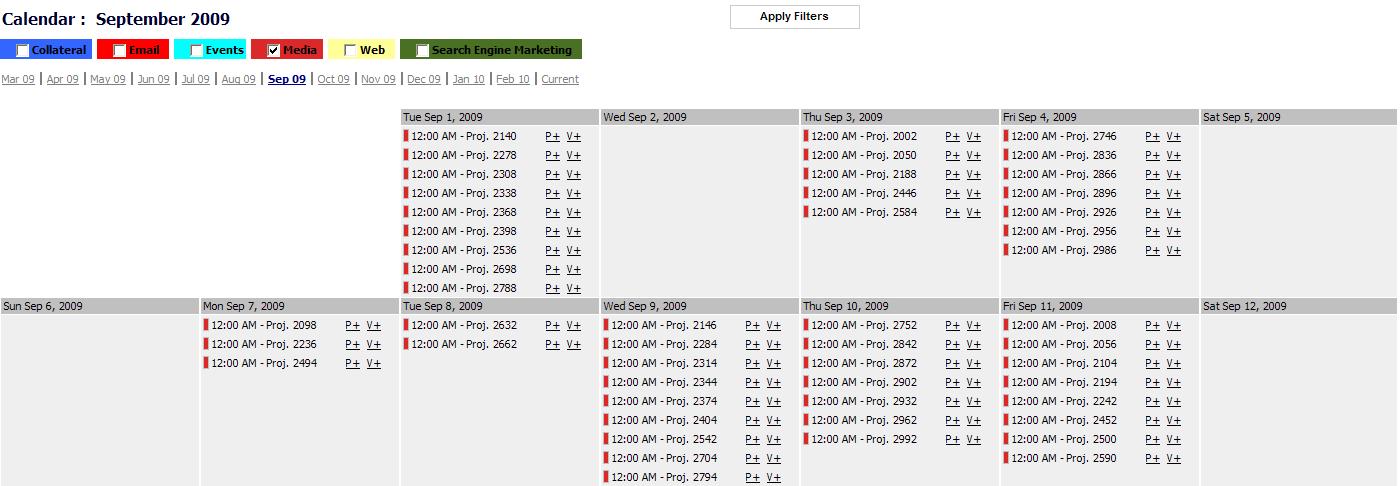
The main body of the final report. This version is filtered by one event type.


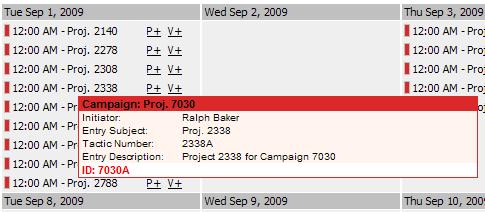
 Close up of a date value, showing additional mouseover information. The events are color-coded to match the filters.

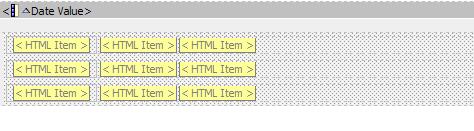
 The list as it appears in Report Studio inside the repeater cell. HTML objects and javascript code  were used extensively here, for mousover information and color coding.

Master Detail

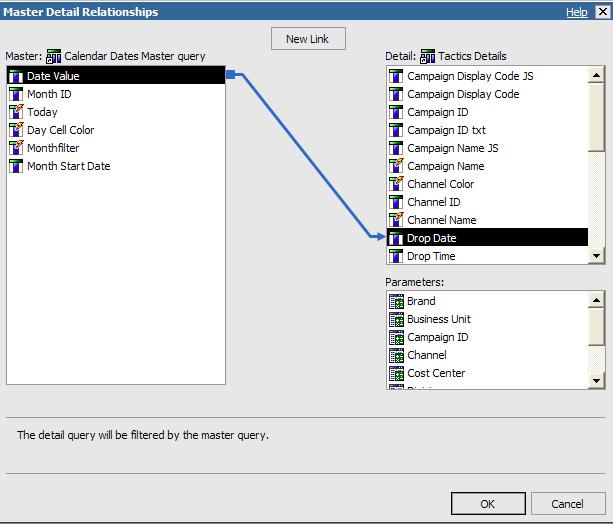
Each day “cell” was constructed as a simple list, with a Master-Detail relationship to the parent date cell, which was linked by the date. An obvious concern in a case like this is that there can be a large set (potentially 31) of detail queries for each month. We tested a number of other options (such as conditionally formatting, and aligning an entire week) and found that the Master-Detail approach worked best for our intended use, given the environment and anticipated number of records.  While not the snappiest of reports, it does perform reasonably well.
Here’s the Master-Detail connection between the date query and the list within the date cell. Additional filters still apply to the list to control types of events displayed.
Also, due to the small amount of space within a cell, we made good use of color to convey additional information (color coding event types) about the events. The cells are fixed size by width, and have a minimum size by height. If there are many events within a cell, the weekly row will expand to display all the events.

Environment/Caveats

In order for this report to work reasonable well, we often work with a DBA to optimize the data structures. Primarily, we have used the two-key approach to the date dimension table, and made sure that the event detail records were indexed by the date values used in the Master-Detail relationships.
Nguồn: Sưu tầm

IBM Cognos Tabbed Report Design


Often times developers will get a request to create several different variations of a single report. While this can be done with user prompting or even multiple versions of a report, another option would be to create tabs within a report which would allow for the user to easily switch between variations. In this month’s tech tip we’ll go over how to create this using drill-throughs, a string variable and a conditional block.
The first step is to identify what tabs you’ll want to display. Each one of the tabs will need to be set up individually. In our example (sample included) we’ll use the seven days of the week.

Create a Query

Create a new query to be used solely to hold the tab values. Call it “Tab Query” and create data items for every tab that you’d like to appear. The expression definition should be a string encapsulated in single quotes.
The end result should appear as below.

Create a String Variable

Next let’s go ahead and create a string variable called “Tab Condition”. Define the expression as shown below:
if (ParamValue(‘TabChoice’) is null) then (‘Monday’) else (ParamValue(‘TabChoice’))
This expression will set a default tab value for the report.
Next, we will need to create a string value to correspond to every data item we created in the query.
Note: The values of this variable must exactly match the expression definition of the data items we created. It is not necessary to use single quotes when defining the values of the string variable.

Create a Hidden Value Prompt

Drag a value prompt onto the page. Name the parameter “TabChoice” within the prompt wizard and click “Finish”
Once created, within the properties menu, set the Box Type to “None” in order to make this prompt disappear.

Associate the Query to the Page

Navigate to the page explorer. Select the page we are working on and associate it to the Tab Query we created in the earlier steps.

Create Tabs

Navigate back to the report and drag a table object onto the page. Define it with 7 columns and 1 row. Drag Text Items into each one of these cells and name them appropriately with each day of the week. Add 20px of padding to each one of these cells.

Define a Conditional Block

Drag a conditional block below the table.
Set the block variable to “Tab Condition” that we created earlier.

Create Drill Throughs:

At this point we’ll need to save the report (call it Tab Example) in order to create a drill through to itself.
Once saved, select one of the tab text values and select Drill-Through Definitions from the left hand Properties pane. Point the drill-through to the Tab Example report.
Define parameters by passing data item values of the corresponding data item
For example, if you are defining the Sunday drill-through then select the Sunday Tab Item.
Repeat the drill through definitions for every tab value.

Select Variable Conditions and Produce Content

We are almost done. All that’s left to do is to develop your content.
Select the conditional block and change the Current Block property to different values. Each one of the values corresponds to a tab. Place your content within the conditional block and test!

Additional Considerations

It is a good idea to conditionally format the table cell (tab) to show active versus inactive tabs. This way users will always know which tab they are currently viewing.
Save frequently. Because this report drills through to itself, any changes made will not be reflected until the report is saved.
Nguồn: Sưu tầm